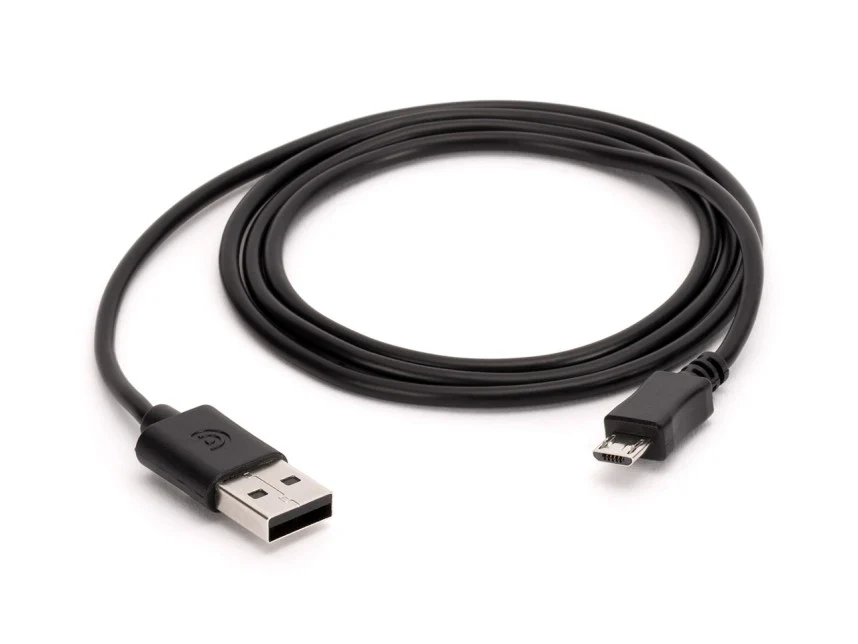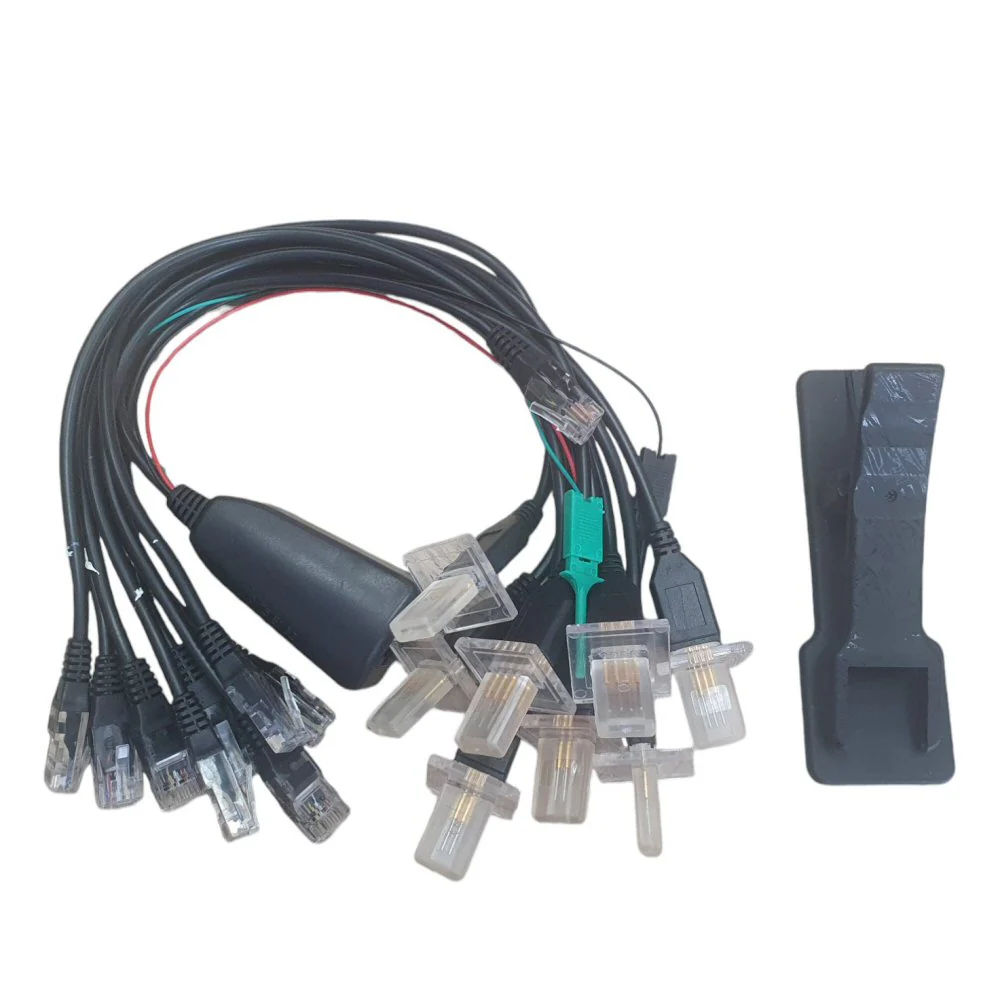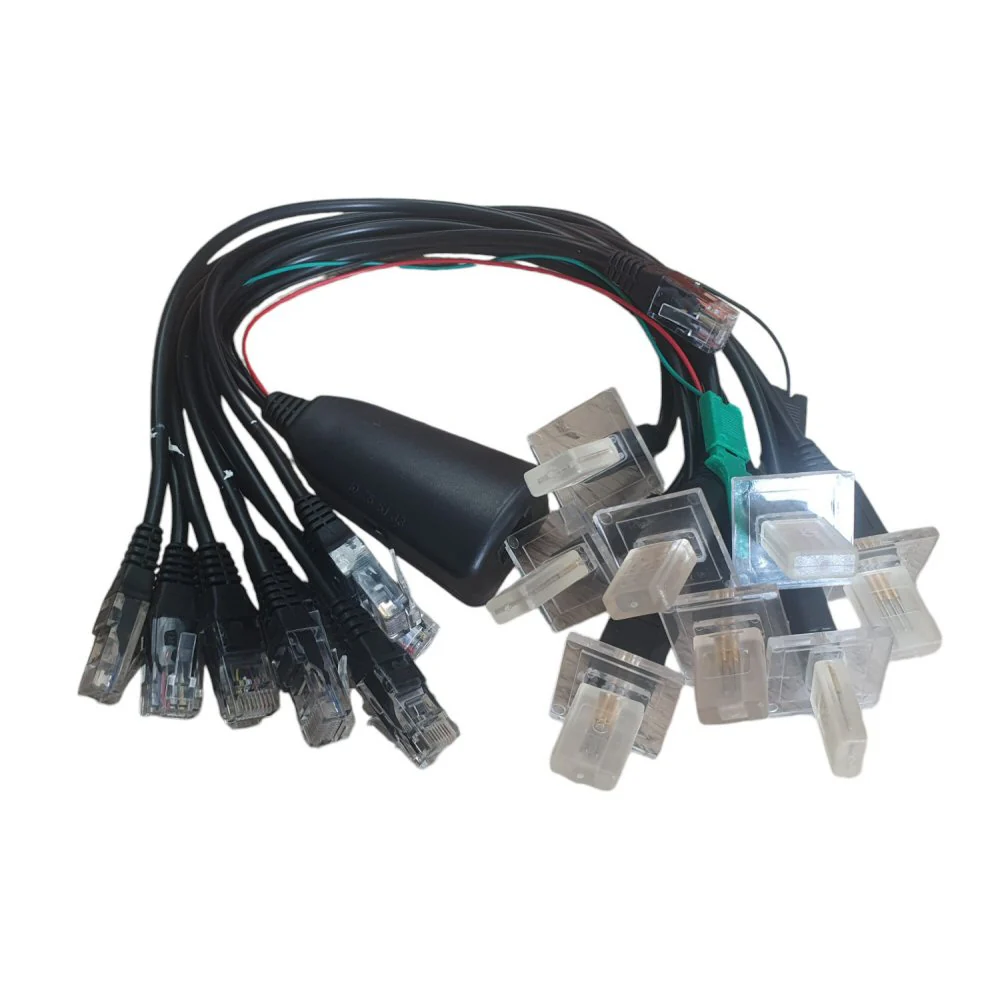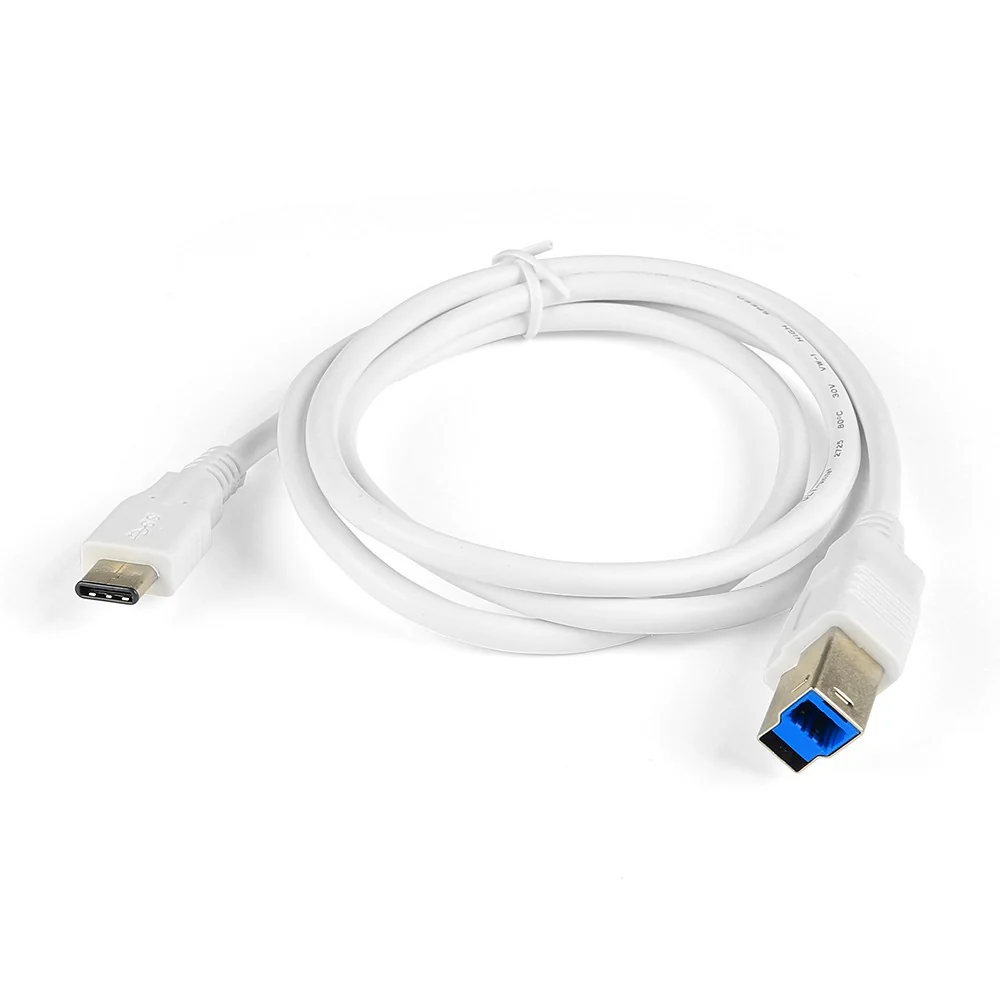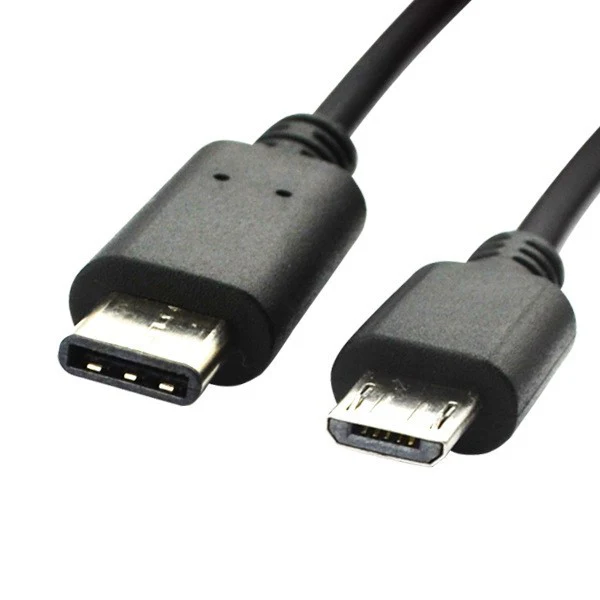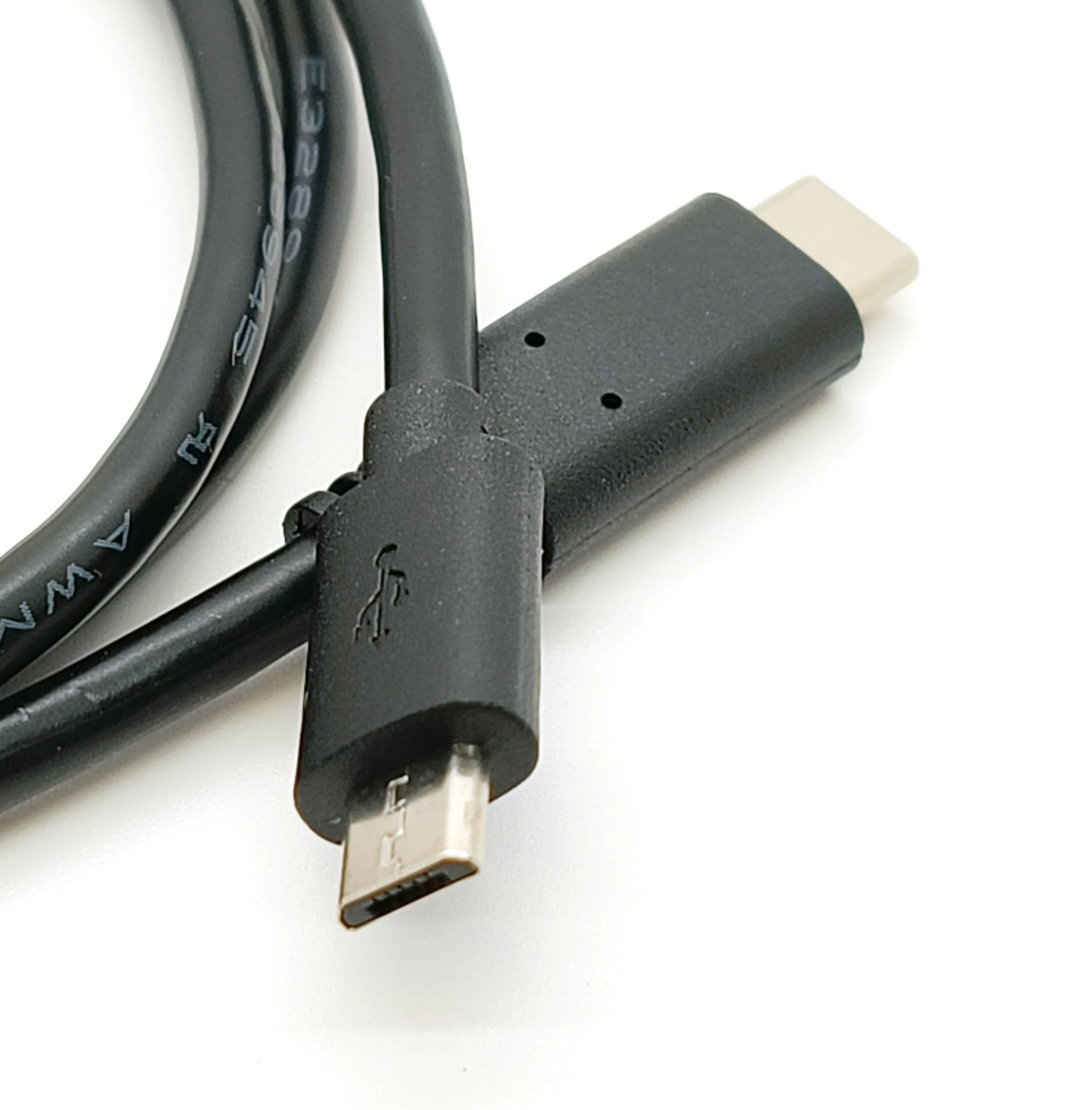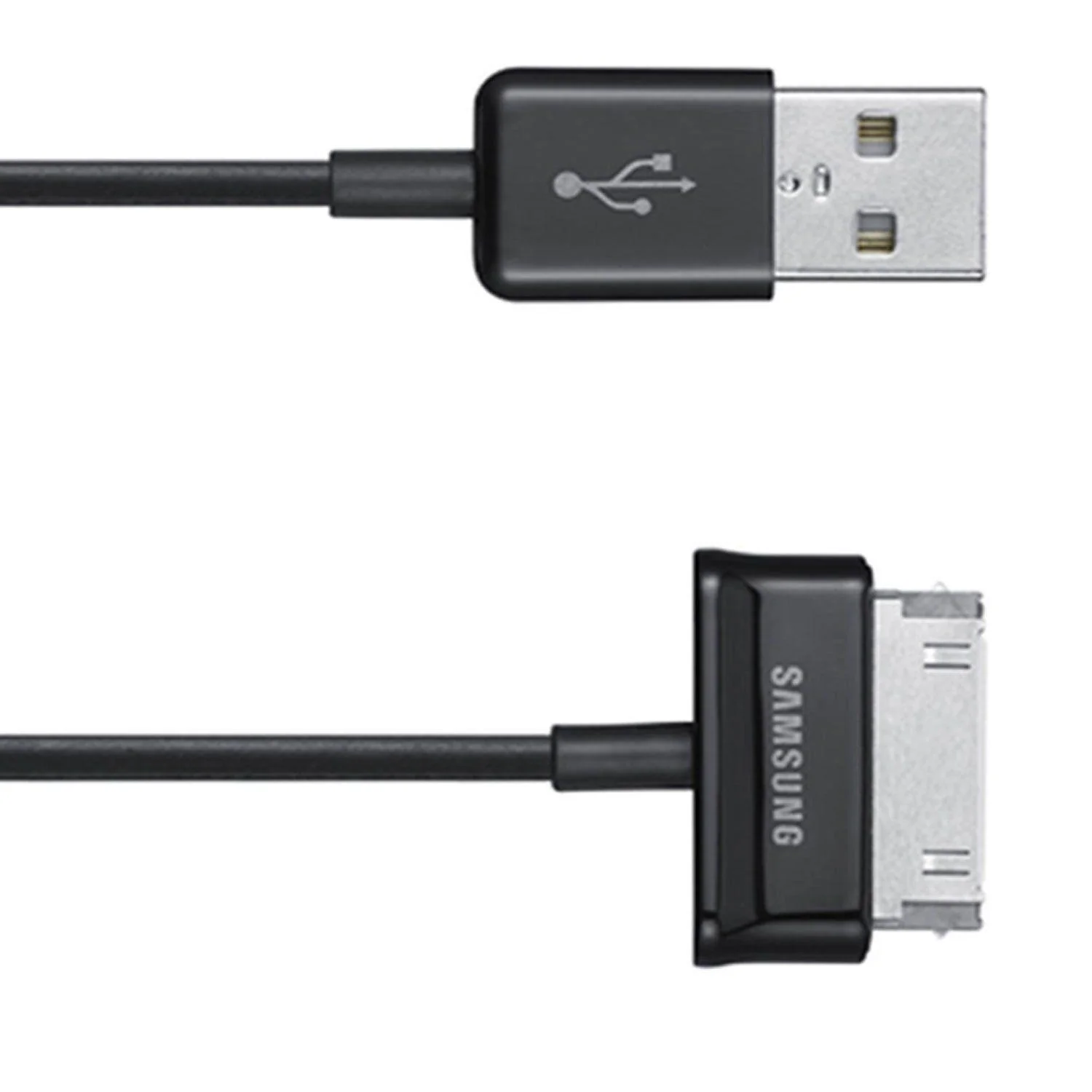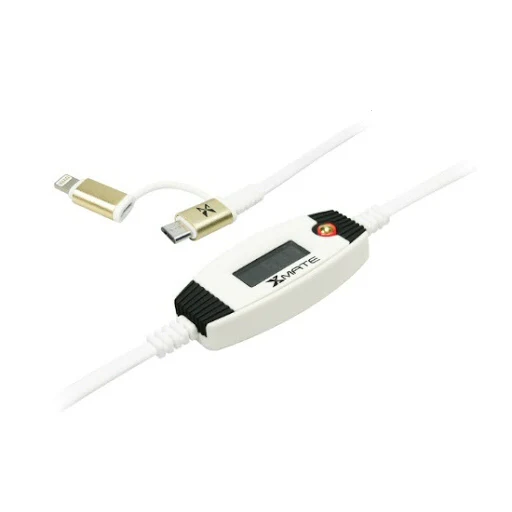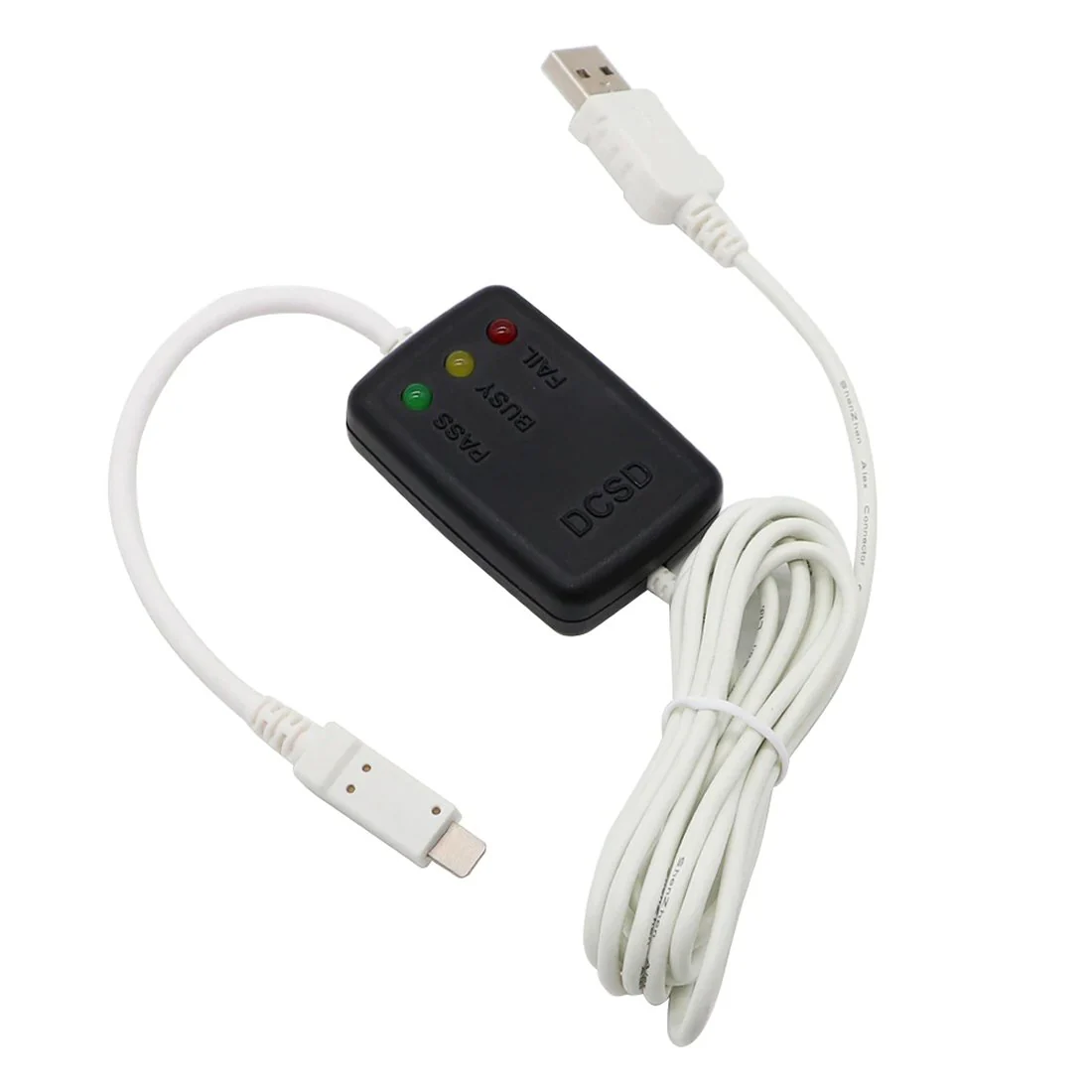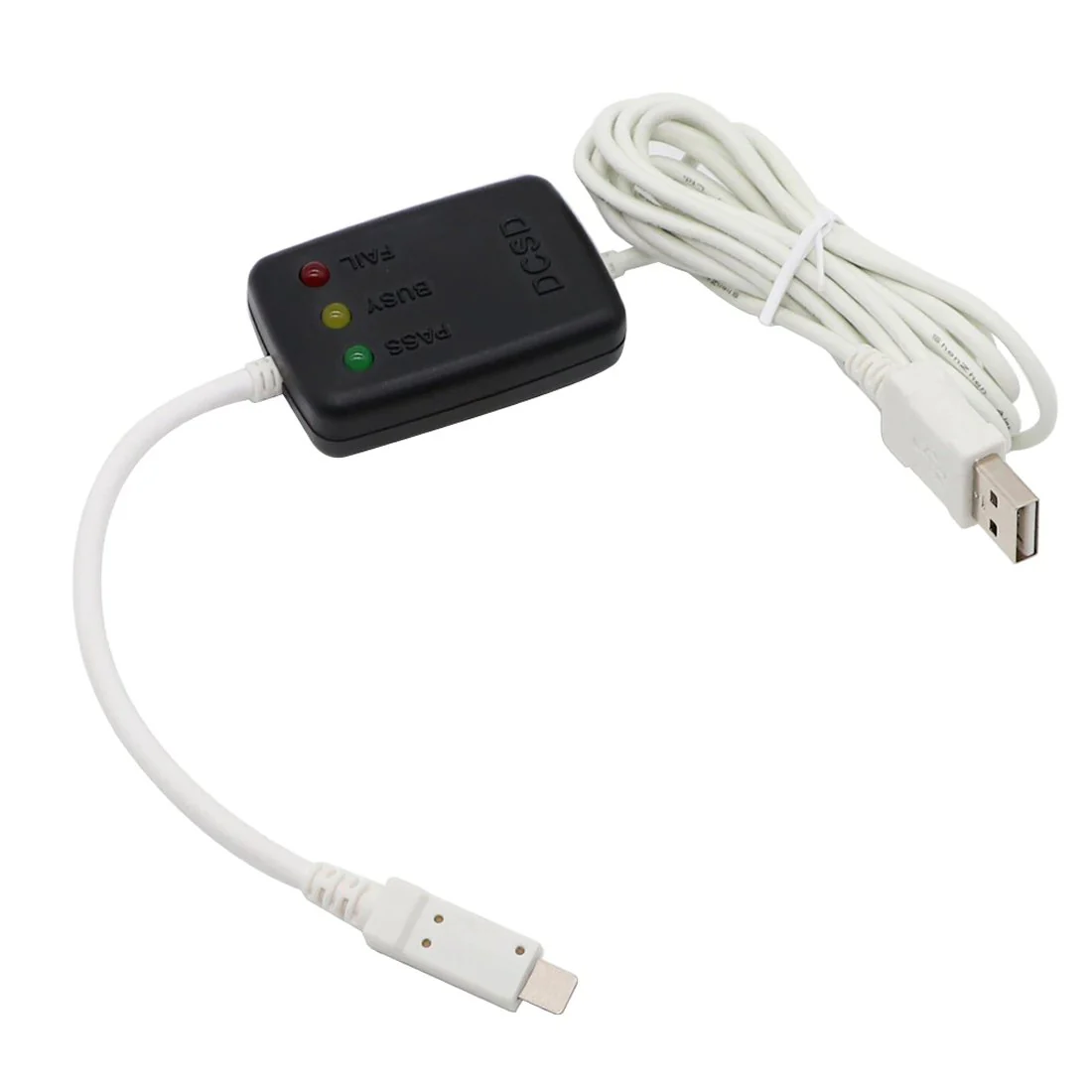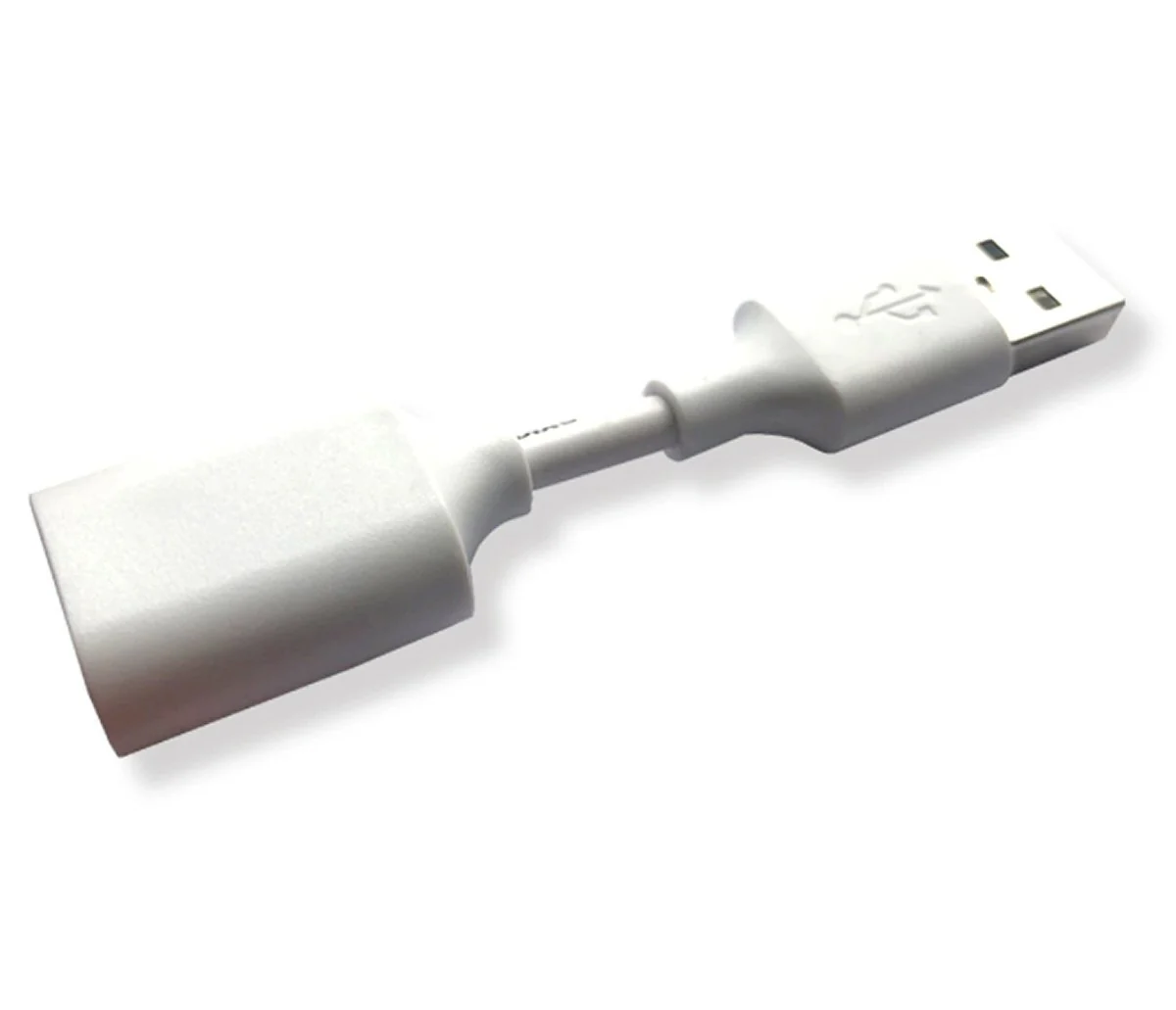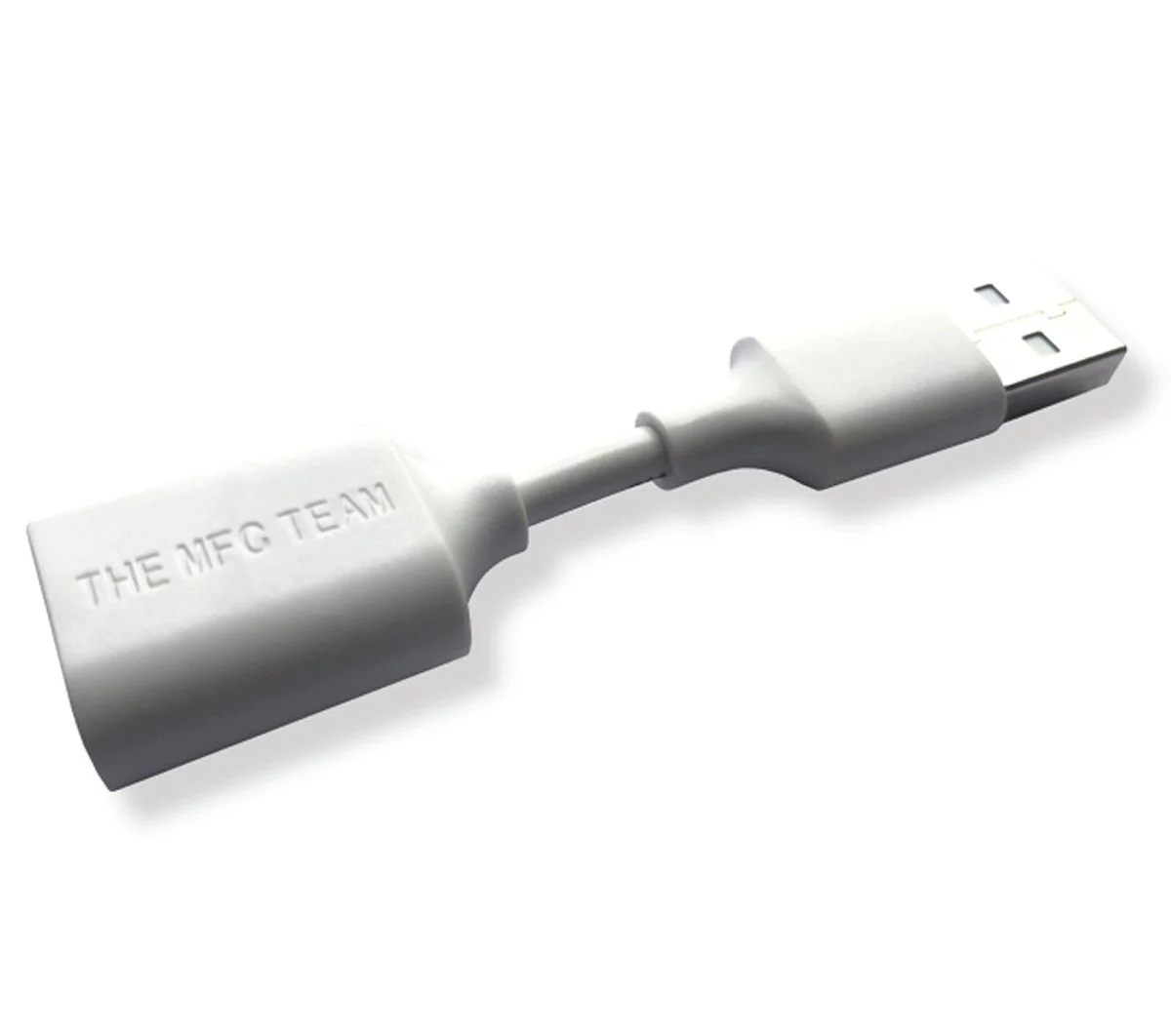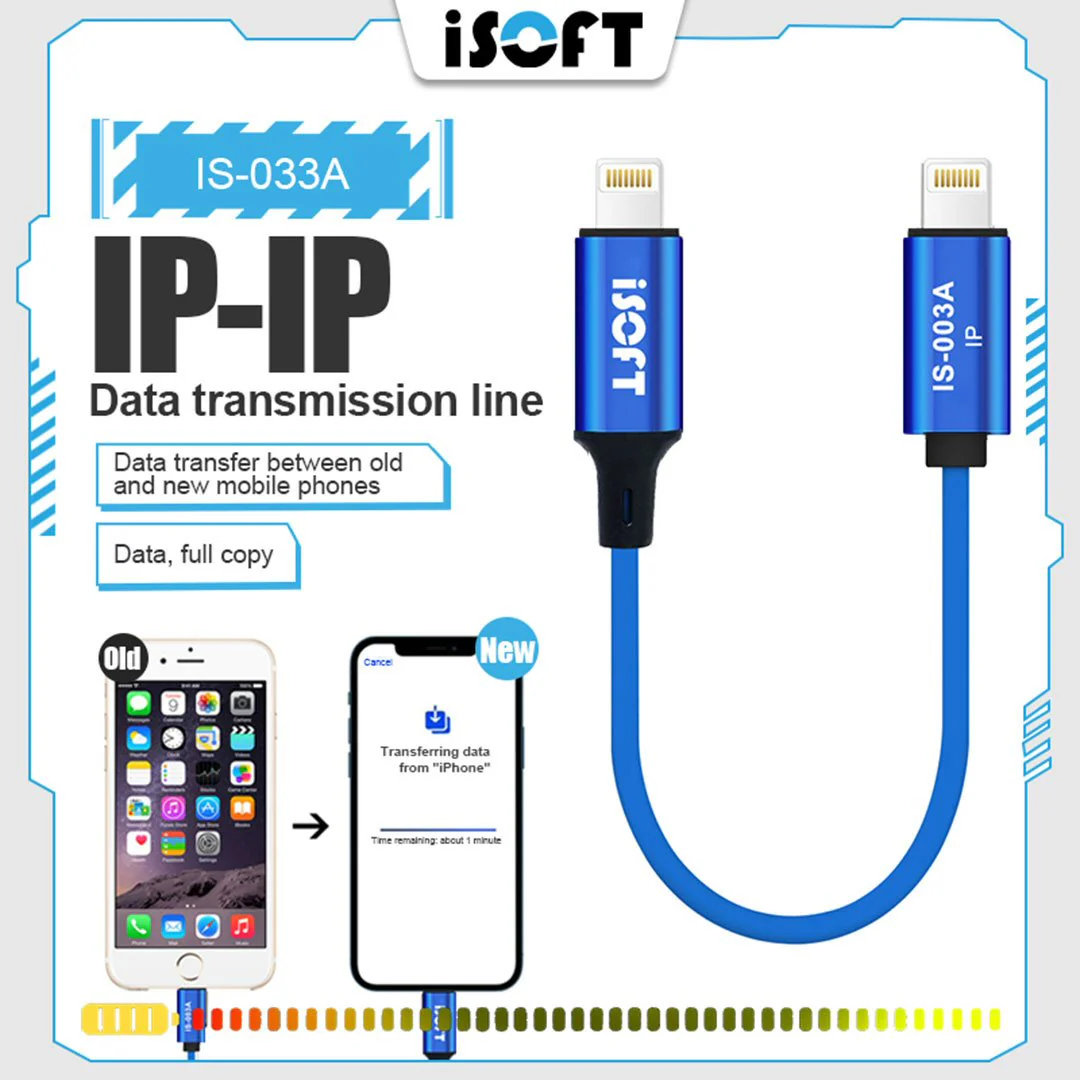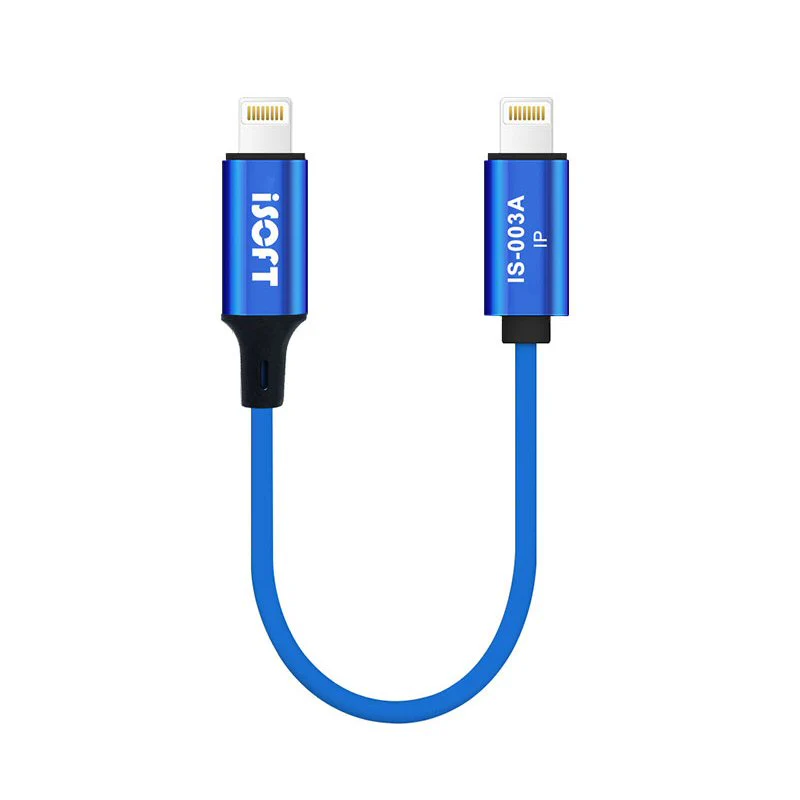
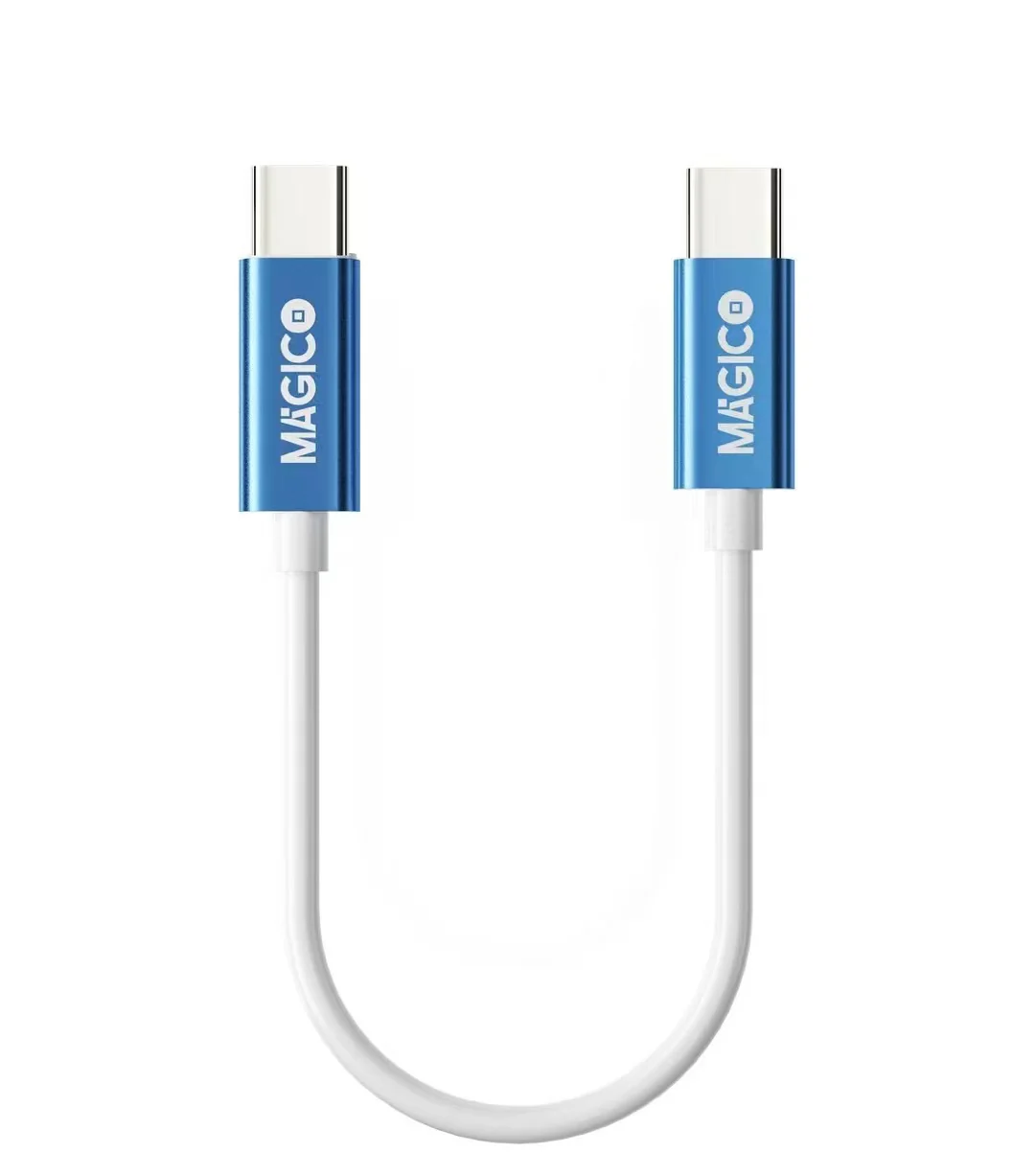
Magico iTransfer Cable For iP15 Series Type-C
Instructions
Whole Phone Data Migration
(Transfer all data from old phone to New phone)
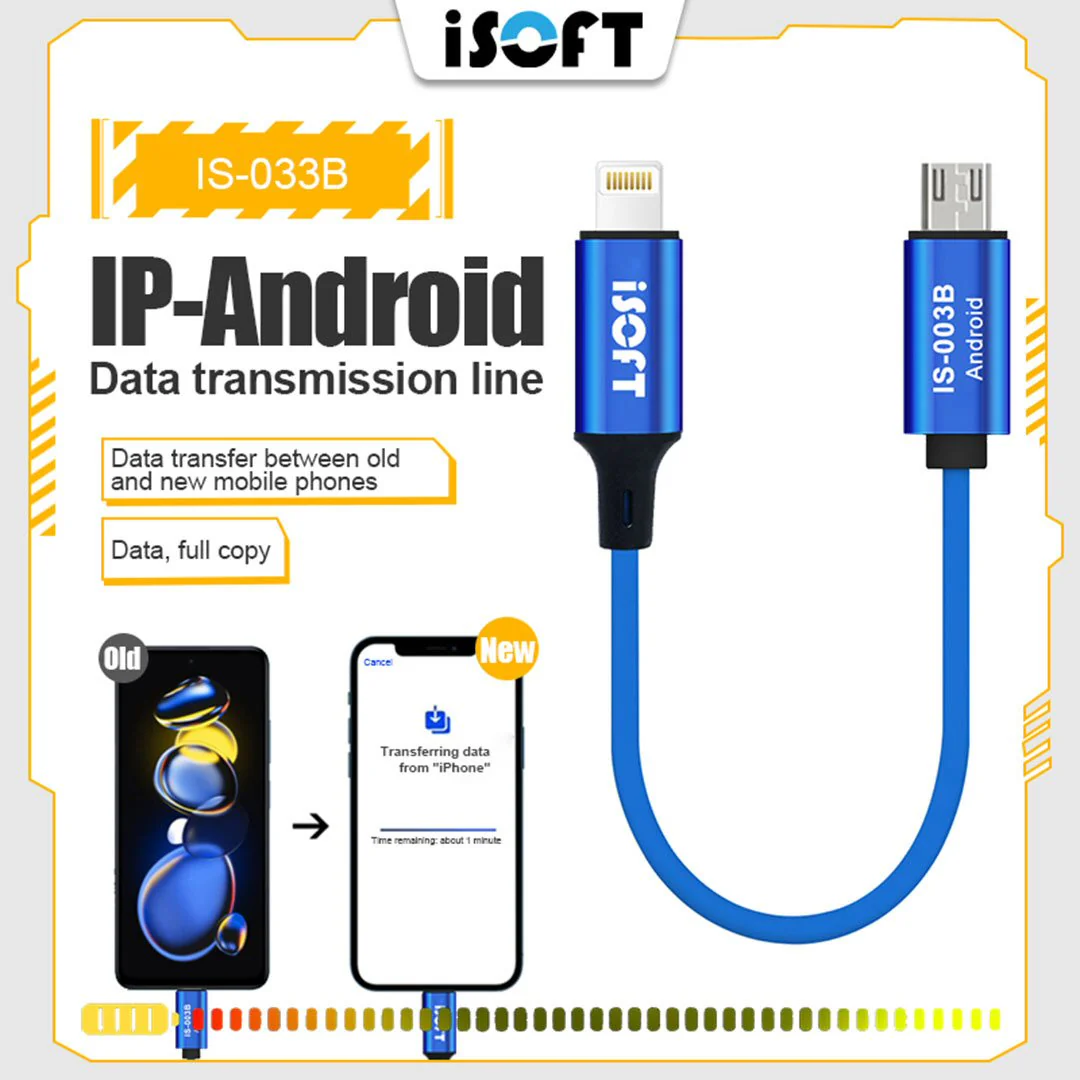
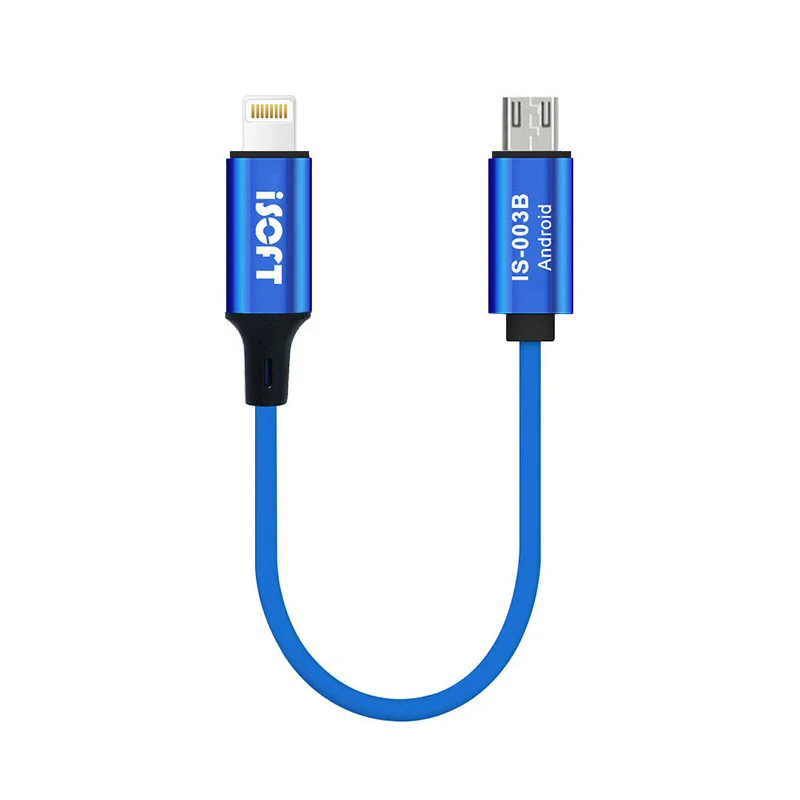
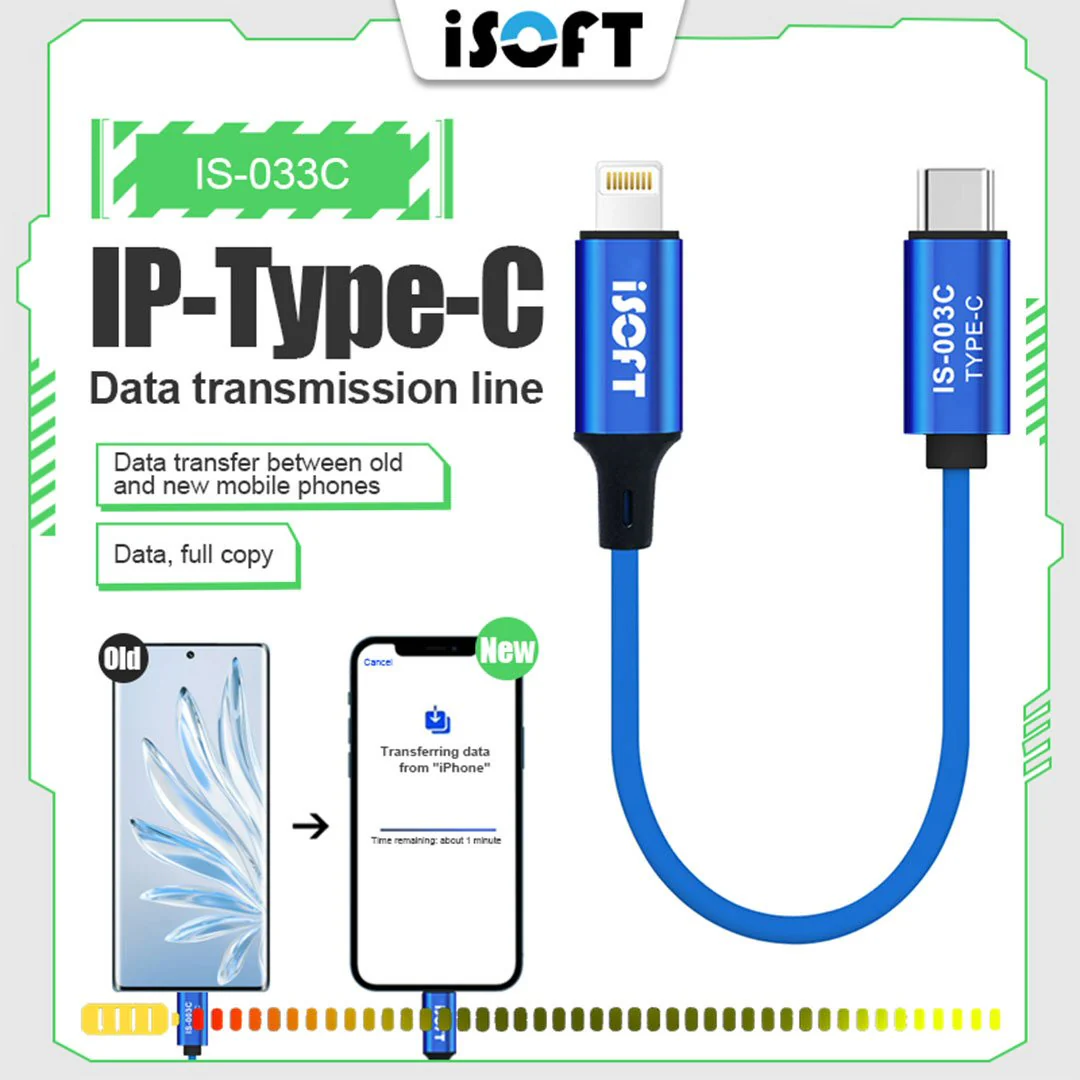
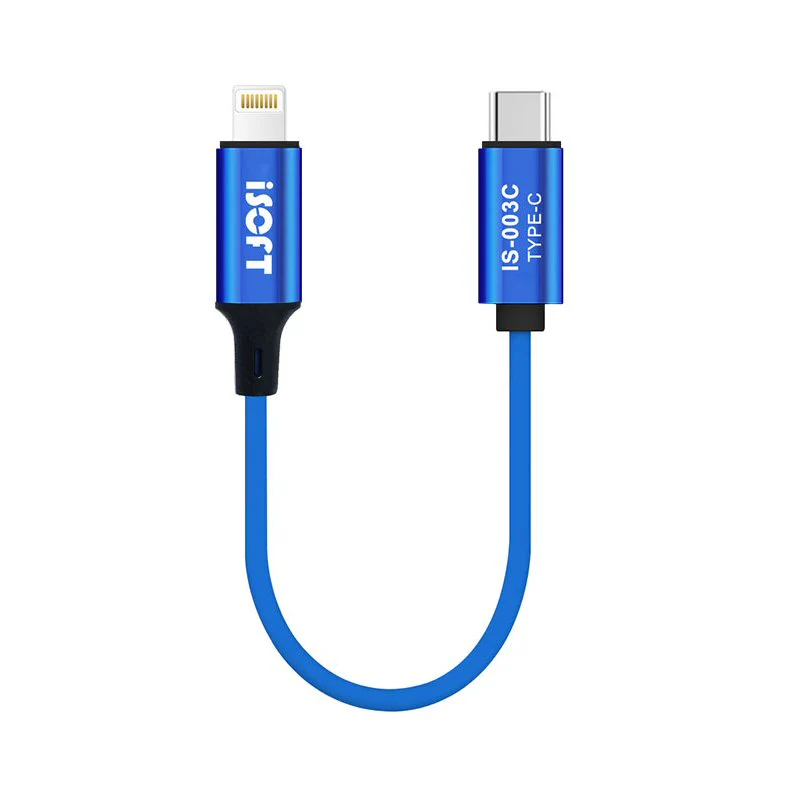
1. Connect the end with the Magico icon to the new phone (hereinafter referred toas the new phone), and the end with the words "IS-003A/B/C" to the old phone(hereinafter referred to as the original phone)
2. The new phone is turned on, the screen prompts "Quick Start€š¬�, enter the AppleID you want to use, and click "Continue"
3. After the animation appears on the new device, scan the screen of the newdevice with the original device (if the camera of the mobile phone fails, pleaseclick "Manual Verification")
4. Enter the original screen password on the new machine, and enter the Apple ID as prompted
5. Click "Transfer from Device", the data from the original device will be migrated tothe new device
6. If an Apple Watch is bound to the original machine, the system will automaticallyask you if you want to transfer Apple Watch data and device parameters to thenew machine; you can choose according to your needs
7. If the transfer fails, you can do it again
8. After the new machine is activated, please check whether all data is copied; aftercompletion, the original phone can be restored to factory settings to clear all data
Note: If the new phone has been activated, you need to restore the content of the new phone before operating the data migration.
The operation of mobile phone restoration is to clear the data mobile phone, so there is data to be retained before the operation to restore, please back up in advance!
Operation steps to restore: "Settings" - "General" - "Restore" - "Erase - €š¬“All Content and Settings"(All data in the phone will be erased!)
Original: $1,206.06
-70%$1,206.06
$361.82Product Information
Product Information
Shipping & Returns
Shipping & Returns
Description
Instructions
Whole Phone Data Migration
(Transfer all data from old phone to New phone)
1. Connect the end with the Magico icon to the new phone (hereinafter referred toas the new phone), and the end with the words "IS-003A/B/C" to the old phone(hereinafter referred to as the original phone)
2. The new phone is turned on, the screen prompts "Quick Start€š¬�, enter the AppleID you want to use, and click "Continue"
3. After the animation appears on the new device, scan the screen of the newdevice with the original device (if the camera of the mobile phone fails, pleaseclick "Manual Verification")
4. Enter the original screen password on the new machine, and enter the Apple ID as prompted
5. Click "Transfer from Device", the data from the original device will be migrated tothe new device
6. If an Apple Watch is bound to the original machine, the system will automaticallyask you if you want to transfer Apple Watch data and device parameters to thenew machine; you can choose according to your needs
7. If the transfer fails, you can do it again
8. After the new machine is activated, please check whether all data is copied; aftercompletion, the original phone can be restored to factory settings to clear all data
Note: If the new phone has been activated, you need to restore the content of the new phone before operating the data migration.
The operation of mobile phone restoration is to clear the data mobile phone, so there is data to be retained before the operation to restore, please back up in advance!
Operation steps to restore: "Settings" - "General" - "Restore" - "Erase - €š¬“All Content and Settings"(All data in the phone will be erased!)